
Adapt Resources
One of the biggest pressures on teachers right now isn’t a lack of ideas – it’s time. Time to adapt resources, time to make them accessible, and time to present the same content in different ways for different learners.
This is where Copilot Create quietly becomes one of the most useful tools in the Microsoft 365 ecosystem.
Rather than being “another AI tool”, Create is best understood as a resource‑conversion space – a place where you can take what you already have and quickly turn it into something else that works better for your students.
Where to Find Copilot Create
When you open copilot.m365.cloud, you’ll land on the main chat page. Down the left‑hand menu you’ll see:
- New chat
- Search
- Library
- Create
- Teach

For this workflow, Create is the key option.
Click it, and you’re immediately presented with a range of creation tools – no prompting gymnastics required – yet!.
What Can You Create?
Straight away, Copilot offers options to create:
- Images
- Videos
- Infographics
- Stories

Under the More menu, you can also:
- Create posters
- Edit images
- Draft documents
- Build presentations
- Generate workbooks
In practice, the tools most teachers will likely use regularly are:
✅ Image creation
✅ Infographics
✅ Video creation
These cover the majority of classroom needs without adding complexity.
Designing an Infographic (A Typical Use Case)
You choose ‘Design an infographic’, and in the prompt box you describe what you want, for example:
Let’s take a realistic classroom example – an infographic suitable for A‑level students summarising key points from an essay plan.
Enter a prompt, then click ‘Add content’, where you can:
- Upload a file
- Pull content from cloud storage
If you click the three dots, you’ll see upload options clearly laid out – nothing hidden.
You can also extend your prompt by asking Copilot to:
- Include key focus areas
- Use symbols or visual markers
- Tailor language for a specific age group or ability range
Once you click Create, Copilot generates the visual in a new window.
Editing Without Leaving Copilot (This Is the Real Win)
AI‑generated content isn’t perfect. We all know that. Even though huge advances have been made recently, more often than not text errors will appear in AI created content.
What makes Copilot Create stand out is that you don’t have to export anything to fix it.
When the image is generated, a panel opens on the right with options such as:
- Transform
- Edit
- Text
Also a box with the words ‘Edit Text’ will appear at the bottom of the image, and you can:
- Correct spelling or phrasing
- Adjust wording for clarity
- Bold key terms
- Change fonts, styles, and effects
This should make any of the text on the image editable – a little frustratingly not all the text is converted all of the time, some text remains in picture format. Sometimes the text extraction process also fails – I’m sure feature this will get better over time.
You can also access an impressive array of editing features:
- Upload your own images (for accuracy or context)
- Use the pen tool to annotate or highlight
- Refine layout directly in the platform
- Create can also give AI suggestions as to how you can improve your Image or Infographic.
This removes the usual AI workflow friction:
Generate → download → open another app → edit → re‑export
Everything happens in one place.
That’s something that many other AI tools don’t currently offer in the same integrated way.
Reusing the Same Prompt (Infographic → Video)
Once you’re happy with your resource, you can return to Create and you’ll notice something useful:
👉 Your prompt is still there.
This means you can still copy your prompt – choose another means of representing your content e.g. a video and paste – a little editing of the word infographic to video and you are sorted .
In most cases, this generates a PowerPoint‑style video with narration and visuals – (which are limited and from Microsoft’s own library) can be edited quickly in Clipchamp if not suitable. While it’s not flashy, it is extremely effective for learning. In the video below, the headings and voice over were created by Copilot Create, the images were not overly suitable. I spent around 10-15 mins on Clipchamp removing and adding imagery.
The creation of video is particularly powerful because:
- Students can pause and rewind content.
- Content can be added to Teams Classroom or Assignments as an additional resource.
- It supports flipped learning
- It reinforces in‑class teaching rather than replacing it
You can also create videos of any of your own existing PowerPoints, reusing images and headings. Creating videos from PowerPoint‑style content is one of the most underused but high‑impact features in M365 right now.
Why This Matters for Teaching and Learning
Copilot Create isn’t about replacing lessons.
It’s about:
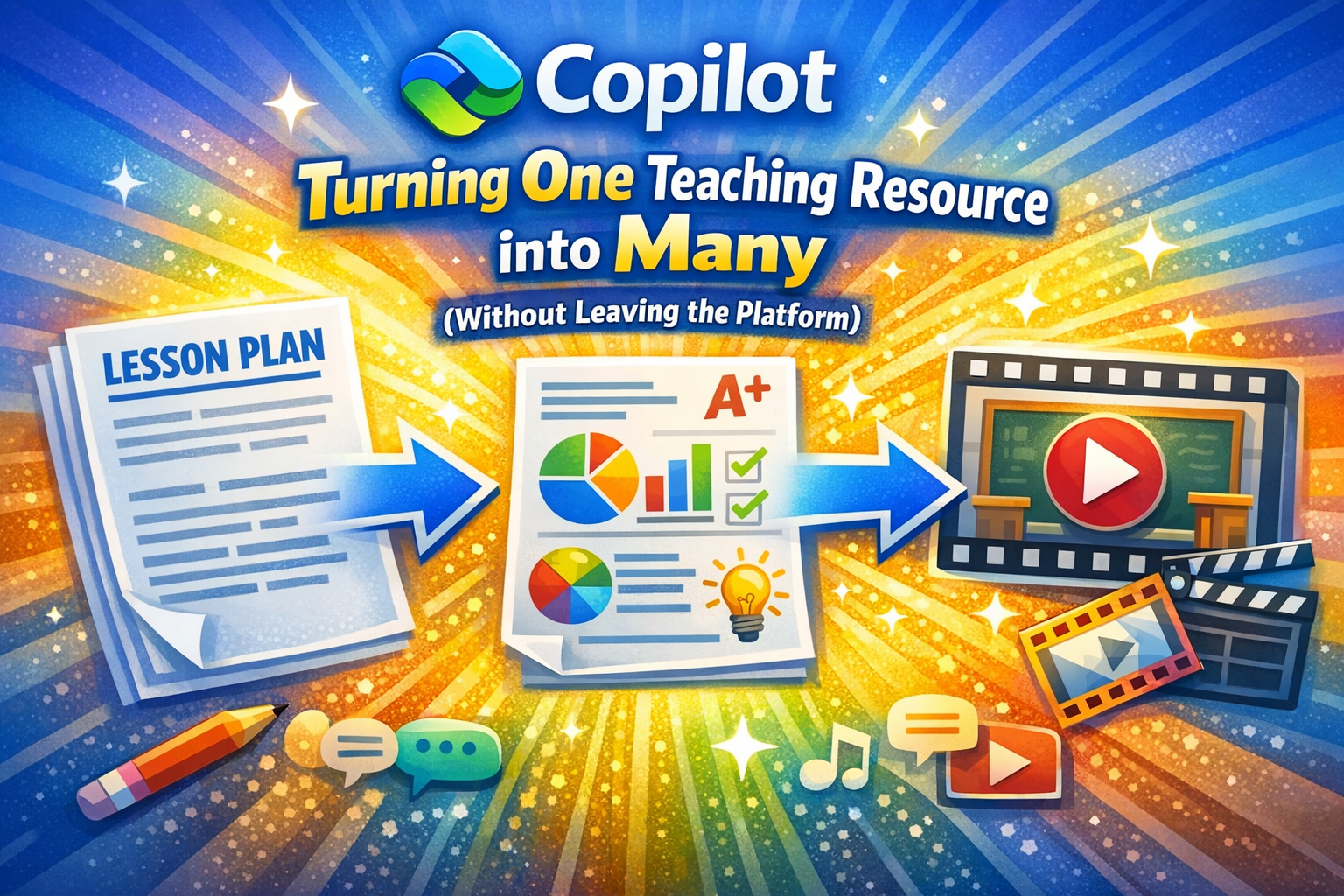
- Churning one resource into multiple formats – supporting Universal Design for Learning
- Giving students alternative ways to access the same knowledge
A single document can now become:
- A classroom explanation
- A revision infographic
- A homework video
- A Teams resource for catch‑up or consolidation
That flexibility is where the real value lies.
Final Thought
Copilot Create works best when you already know what good teaching looks like.
It doesn’t replace pedagogy – it amplifies it.
Used well, it becomes a quiet but powerful assistant:
- Reducing workload
- Improving accessibility
- Helping students revisit learning on their own terms
And for me, that’s exactly where AI belongs in education.
Leave a Reply