
By Darren Currie, with contributions from Aaron Bowen (Kinsale Community School)
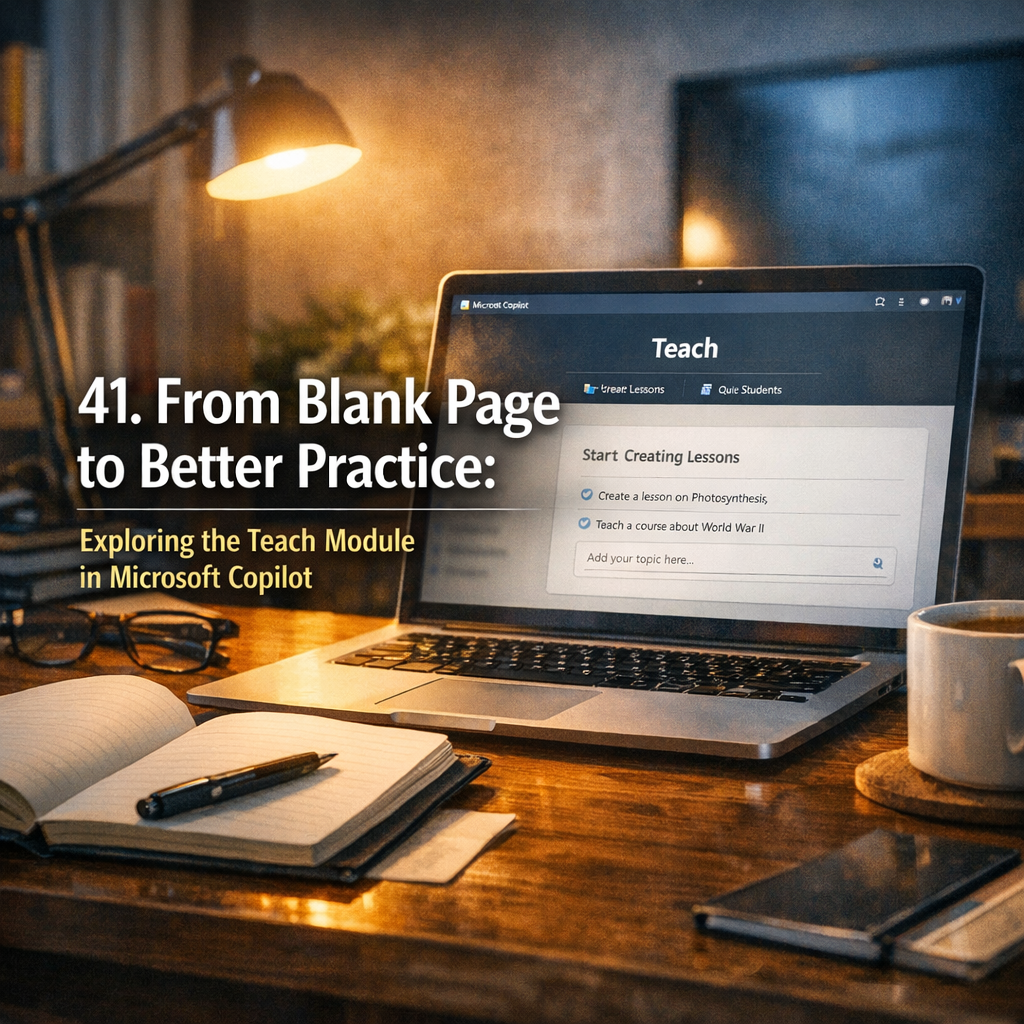
At the Aid and Inspire Microsoft Conference (05.03.26), I had the chance to spend time looking closely at the Teach module in Microsoft Copilot. Rather than another abstract demo, this session focused on something teachers care deeply about: saving time without lowering standards.
A significant part of this insight came from a live presentation by Aaron Bowen of Kinsale Community School. What follows is a single reflection that blends my own experience of using Teach in school with Aaron’s practical walkthrough of how it works in real classrooms.
The core message was simple and refreshing:
Teach is not about replacing teachers. It’s about helping us move from creating everything from scratch to editing and improving a solid first draft.

1. Lesson planning that starts somewhere sensible
One of the most impressive aspects of Teach, and something I genuinely appreciate as a teacher, is how efficiently it creates a practical lesson plan. Anyone who’s spent time planning lessons knows how daunting it can be to pull together all the necessary materials, standards, and learning objectives, especially on a tight schedule. With Teach, that process is noticeably streamlined, allowing you to focus more on delivering your lessons than agonising over the finer details. The platform’s intuitive approach means you can have a well-structured plan in your hands within minutes, ready to be tailored further to your needs.
It’s worth noting, however, that the lesson plans generated by Teach sometimes err a little on the over-enthusiastic side. They tend to be quite lengthy and detailed – often more so than what’s actually required for a typical classroom session. This means a bit of editing is usually needed to trim things down and ensure each lesson fits comfortably into your timetable and teaching style.
The workflow is refreshingly simple and here’s where Teach really shines:
- First, you select the subject area and the year group you’ll be teaching. Whether you’re planning a Key Stage 2 science lesson or an A-level English class, Teach adapts accordingly.
- Next, you add a brief description of what you want to cover. This acts as your guiding statement, helping to keep the lesson focused and relevant for your pupils.
- You then have the option to upload any existing resources you’d like to incorporate. This might be your tried-and-tested PowerPoints, worksheets you’ve developed over the years, or even passages of text for comprehension tasks. The platform integrates them seamlessly into your plan, saving you the hassle of reformatting or re-uploading content.
At present, Teach uses US class grades and US English throughout its interface and lesson materials. For teachers outside the United States, this can sometimes be a little confusing or require additional translation and adaptation. Hopefully, these features will become more flexible in the future to better support international users and local curriculum needs.
One feature that stands out is the ability to select curriculum standards right from the outset. This is a huge help for teachers working in environments with strict guidelines or for those who simply want to ensure their lessons are aligned with national or local frameworks. Once you’ve chosen the relevant standards, Teach keeps your lesson plan in sync automatically, making sure your content supports the required outcomes without you having to double-check every detail. This really helps in maintaining consistency and quality across all your teaching materials.
The important shift here is in mindset. Instead of getting bogged down in administrative tasks, Teach encourages you to spend more time thinking about how you want to engage your students, what activities will spark curiosity, and how best to foster meaningful learning. In my experience, the less time spent on paperwork, the more energy you have to inspire and support your pupils. That’s what teaching should be all about.
And if you’re looking ahead for something even more useful, keep an eye out: a dedicated unit planner is in the pipeline and should be available soon. This will take Teach’s planning capabilities to the next level, making it easier than ever to map out cohesive units and support longer-term learning goals.et. You are not staring at a blank page. You’re reading, tweaking, correcting, and improving. That alone removes a huge cognitive and time burden.

2. Standards alignment – including ROI and Northern Ireland
This part will matter to many of us.
During the session, Aaron was clear that not all Republic of Ireland or Northern Ireland standards are visible yet, but they are being actively added. In practice, I’ve been using Environment and Society (KS3 and KS4) successfully, and alignment works as expected once standards are selected.
The key point is this:
- alignment is built in
- once set, it doesn’t drift
- if a standard isn’t available yet, it’s expected to be
That’s a big step forward compared to retrofitting standards after the fact.
3. Editing, not trusting blindly
This needs saying clearly.
The Lesson plans created deserve a thoughtful review to unlock their full potential! At our recent conference demo, Aaron spotted some numerical errors in the content – reminding us to verify and check details.
The attached video of mine proves how easy and quick it is to build lesson plans using Teach, but often the results are just packed with too much instruction for a typical 60-minute class.
When verifying, make sure all information is accurate and ready to support all your learners in the classroom. Teach can help streamline planning; and trimming down overly detailed content helps teachers stay focused on what matters most. To maximise lesson impact, consider iterations using the chat in Teach to make sure your plan matches class time and focus on keeping students engaged, with inclusive strategies.
Teach works best when you:
- read through the draft
- make subject‑specific corrections
- then ask Copilot to refine after your edits
Final versions can be saved and shared so departments are working from the same agreed resource, not multiple near‑identical copies.
4. Breathing new life into old resources
Unlocking the hidden potential of your existing resources might just be the most powerful feature of all. So often, we find ourselves sitting on a treasure trove of lesson plans, worksheets and articles – materials we’ve poured hours into creating, but which have faded into the background as new curricula and changing pupil needs take centre stage. The reality is, these resources still have enormous value, but they need a fresh twist to make them relevant and accessible for today’s learners.
The process couldn’t be simpler. If you have older resources in paper form – perhaps tucked away in a cupboard or filed in a folder – you can simply take a photo or scan them to PDF. Teach accepts these uploads and transforms them, meaning even your most vintage materials can easily be brought into the digital age, ready for revitalisation.
With Teach, you can upload a range of content:
- older lessons that might not reflect the latest standards
- worksheets packed with valuable information, but perhaps a bit dense for some pupils
- articles which once sparked lively discussion, but now feel slightly out of sync with the current cohort
Once your materials are uploaded, the magic really begins. Teach enables you to:
- update and align them with current standards and learning objectives
- adapt reading levels, lowering or raising as needed to suit each group
- differentiate instructions to cater for the unique demands of different classes, whether mixed ability or specialised groups
The broader value is clear: we all have strong resources to hand, but the challenge is making them accessible and engaging for the pupils we’re teaching this year, not last year’s group or the cohort from three years ago.
Copilot Create and Teach
And here’s the icing on the cake: you can use your Teach lesson plans and resources with the Create app in Copilot. Create takes your revitalised resources and helps you craft new, tailored activities or lesson materials in moments. Imagine transforming an old worksheet into an interactive task, a faded lesson plan into a dynamic series, or a once-overlooked article into a springboard for discussion.
The combination of Teach and Create means your past efforts don’t just sit idle – they become the foundation for future success, saving time and ensuring every pupil has what they need to thrive. By bridging the gap between yesterday’s hard work and today’s classroom demands, Teach and Create in Copilot truly give your resources a new lease of life. It’s about working smarter, not harder, and making sure nothing valuable ever goes to waste. Give it a try; you might just rediscover some hidden gems! generate quizzes directly from lesson plans
Below I created narrated revision videos from a Teach created lesson plan using Copilot Create.
These are especially useful for:
- flipped or blended learning
- pupils who missed a lesson
- revision and recap
5. Built‑in study aids (without extra work)
With your new lesson plans and resources, Teach can generate a range of engaging educational resources that cater to various learning styles and classroom needs:
- Fill‑in‑the‑blank activities: These exercises allow learners to actively recall and apply information by filling gaps in sentences, definitions or passages.
- Flashcards: Teach automatically creates flashcards that can be used for quick review and revision. Each flashcard can feature key terms, concepts, or images, making them ideal for memorisation and reinforcing subject knowledge.
- Short quizzes: Teach generates concise quizzes, each with a set of questions and corresponding answers. These quizzes are suitable for formative assessment, allowing teachers to quickly gauge students’ understanding.
- Mix and match: These exercises encourage learners to connect related concepts by matching items such as terms and definitions, questions and answers, or images and descriptions. The content can be customised to focus on specific themes or vocabulary.
All activities can be adjusted for both difficulty and language level, ensuring that every resource supports differentiated learning. Once created, these materials can be seamlessly shared via Microsoft Teams or OneNote, making distribution and collaboration simple for educators and students alike. In addition, Teach provides feedback tools that enable both teachers and learners to check understanding and monitor progress, fostering a more personalised and effective learning experience.
Coherence is key: these study aids connect directly to your lesson content, not just added extras. Each aid gets a link for sharing via Teams (classwork app maybe?). On a personal note, I really hope Microsoft decides to introduce a print option. It would be so useful for those moments when you want to review materials offline or share them in a more traditional classroom setting. To be clear, Microsoft hasn’t announced that this feature will be coming – it’s just something I’m wishing for based on current trends. Fingers crossed they listen to feedback from educators like us, because having both digital and print resources would make these study aids even more versatile and accessible!
6. Making complex content accessible
One of the clearest demonstrations of this process was when I copied a real-world article into Teach and adjusted the reading level to make it more accessible. It was genuinely impressive to see how the tool could transform a dense, jargon-heavy text into something more approachable for pupils. This wasn’t just about making things easier; it was about ensuring that everyone, regardless of their starting point, could engage with the essential ideas.
Teach then – with your help:
- identifies key terms, picking out the vocabulary or concepts that might trip up learners and providing simple explanations or definitions alongside them
- simplifies language, rephrasing sentences and paragraphs so they’re straightforward without losing the substance of the original message
- suggests clearer phrasing, offering alternatives that are easier to understand but still academically rigorous
This is not “dumbing down”. It’s about removing unnecessary barriers so pupils can access the core ideas. This is especially valuable in mixed-ability classrooms, where differentiation is crucial. Copilot helps you achieve this quickly and effectively—no more hours spent manually rewriting resources for each group. Instead, you can focus on what matters: teaching and supporting your students.
Of course, it’s not all plain sailing. Occasionally, I’ve run into a issue when dealing with very large documents – the system can crash if you try to process too much at once. But there’s an easy workaround: I use Adobe Pro to extract specific pages from hefty PDFs, or simply copy and paste the relevant sections into the prompt box. It’s a small extra step for a much smoother experience overall, and the time saved elsewhere more than makes up for it!
So what’s the real takeaway?
For me, and echoed strongly by Aaron’s session, the Teach module is about:
- saving time
- reducing workload
- supporting differentiation
But more than that, it’s about low effort for staff, high impact for students.
The real strength of Teach isn’t that it can do everything. It’s that the prompting is already done for you. You don’t need to engineer the perfect question – the structure is built in, and that makes high‑quality use far more likely across a whole staff.
If you already have content that’s “nearly there”, Teach is well worth exploring.
Teach feels like a quite “grown‑up” app.
The interface is calm, sensible and purposeful – but it’s also noticeably less exciting than something like NotebookLM. There’s very little sense of exploration or play. It feels designed for adults who want to get a job done, not for tinkering or curiosity. That’s not a criticism in itself, but it does shape how teachers experience it.
Where Teach currently falls down a bit is cohesion. At the moment, you have to leave the module to create other resources than the study aids, which breaks the flow. Ideally, this should be a single, joined‑up space: create a scheme or unit, then build lessons from it, then generate resources such as worksheets or infographics- all in one place. That kind of end‑to‑end workflow would make Teach feel far more intentional and classroom‑ready.
It’s also important to say this clearly: everything Teach produces needs checking. Lesson plans tend to be generic and often quite long‑winded. They read well, but they don’t automatically suit your learners, your class, or your context. Iteration is key. The real value comes from refining, cutting, adapting, and reshaping – not from lifting content wholesale. Teach works best when you treat it as a drafting partner, not an answer engine.
One practical tip worth sharing: when modifying content ignore the pressure to write long prompts. In most cases, uploading a document is more than enough to generate new useful content. Existing resources – even rough ones – give Teach far better grounding than carefully crafted prompts ever will.
Overall, this is a solid start from Microsoft. The study aids in particular are genuinely strong and show real promise, especially for revision and independent learning. With better integration and a more cohesive design, Teach has the potential to become something far more powerful than it currently is. Right now, it’s really useful but nor fully transformative – it’s pointing in the right direction though!
Acknowledgement
This post draws on a recorded conference presentation by Aaron Bowen (Kinsale Community School), shared with permission, alongside my own classroom and leadership experience using the Teach module in Microsoft Copilot.
Leave a Reply